
AI Voice Synthesizer
Turn your recording into a new voice. Upload a vocal or spoken clip, pick a target voice sample, and BeatMusic re-synthesizes it with the same words and timing.
Show Case
Listen to voice conversion examples
Hear Voice Conversion in Action
Listen to before-and-after examples of recordings converted into different voices, and check how pitch and target samples shape the result.
What the Voice Synthesizer Does
A voice-to-voice converter built around two audio files and a few simple controls.
Voice-to-Voice Conversion
Upload a vocal or speech recording and the converter re-sings or re-speaks it in the timbre of a target voice sample you provide, keeping your original words and timing.
Bring Your Own Target Voice
The voice you hear in the result comes from a reference audio file you choose, either uploaded from your device or picked from songs already saved in your BeatMusic library.
Pitch Shift Control
Move the output up or down by as many as 24 semitones. Plus or minus 12 is a common starting point when you cross from a lower voice to a higher one.
Optional Accompaniment
Keep the backing music from your source file in the result, or switch it off when you only want the converted voice on its own.
MP3 and WAV Uploads
Drop in MP3 or WAV files up to 50 MB for both the source audio and the target voice, so most phone recordings and studio bounces work as they are.
Conversion History
Finished conversions stay in your history so you can replay them, compare different pitch settings, and download the version you like as an MP3.
Voice Conversion Settings Guide
Pick a sensible pitch value and prepare clean input audio before you convert. These tables cover the two things that most affect the result.
Pitch adjustment guide
| Goal | Semitones | When to use | Watch out for |
|---|---|---|---|
| Same register | 0 | Source and target voices sit in a similar range | Small mismatches may still sound off; try plus or minus 1 to 2 |
| Male to female | +12 | Low source voice, higher target voice | High notes can sound strained or thin |
| Female to male | -12 | High source voice, lower target voice | Low notes can sound muddy or weak |
| Brighter, younger feel | +3 to +5 | Same voice type, lighter tone wanted | Too much can sound artificial |
| Deeper, darker feel | -3 to -5 | Same voice type, heavier tone wanted | Too much can lose clarity |
| Octave fix for mismatched keys | ±12 or ±24 | Result sits far above or below the target singer's comfortable range | Extreme values add artifacts; test smaller steps first |
Input audio checklist
| Check | Why it matters | Quick fix |
|---|---|---|
| Clean, dry vocal | Noise and effects get treated as part of the voice | Use a raw vocal or a vocal-only stem |
| No heavy reverb | Reverb tails blur pitch detection and sound smeared | Re-record dry or pick a drier take |
| Single voice only | Backing vocals and harmonies confuse the conversion | Use a lead-vocal take without stacks |
| Consistent level | Very quiet or clipped sections convert unevenly | Normalize volume and avoid clipping |
| Reference voice clarity | The target voice is learned from the reference clip | Use a clear, solo sample with natural tone |
| Format and size limit | Files over the limit are rejected | Use MP3 or WAV under 50MB |
Practical tips
- Leave Include Accompaniment on to keep the backing music, or turn it off for a voice-only result.
- If your track is a full mix, separate the vocal first with the vocal remover, then convert the vocal stem.
- Convert the same clip with two or three pitch values and compare them by ear before settling.
- Change the pitch in small steps; large jumps tend to add artifacts.
- Pick a short, representative section for early tests, then run the full track once you like the settings.
- Only use voices you own or have clear permission to use, and respect the rights to the source recording.
- You can upload files or choose a track from My Music, so generated songs can go straight in.
What Can You Do With an AI Voice Synthesizer?
Practical ways creators use voice-to-voice conversion.
Swap the Singer on a Demo
Record a rough vocal on your phone, then convert it into a different voice to hear how the song feels with another singer before anyone books a studio.
Convert a Voice Now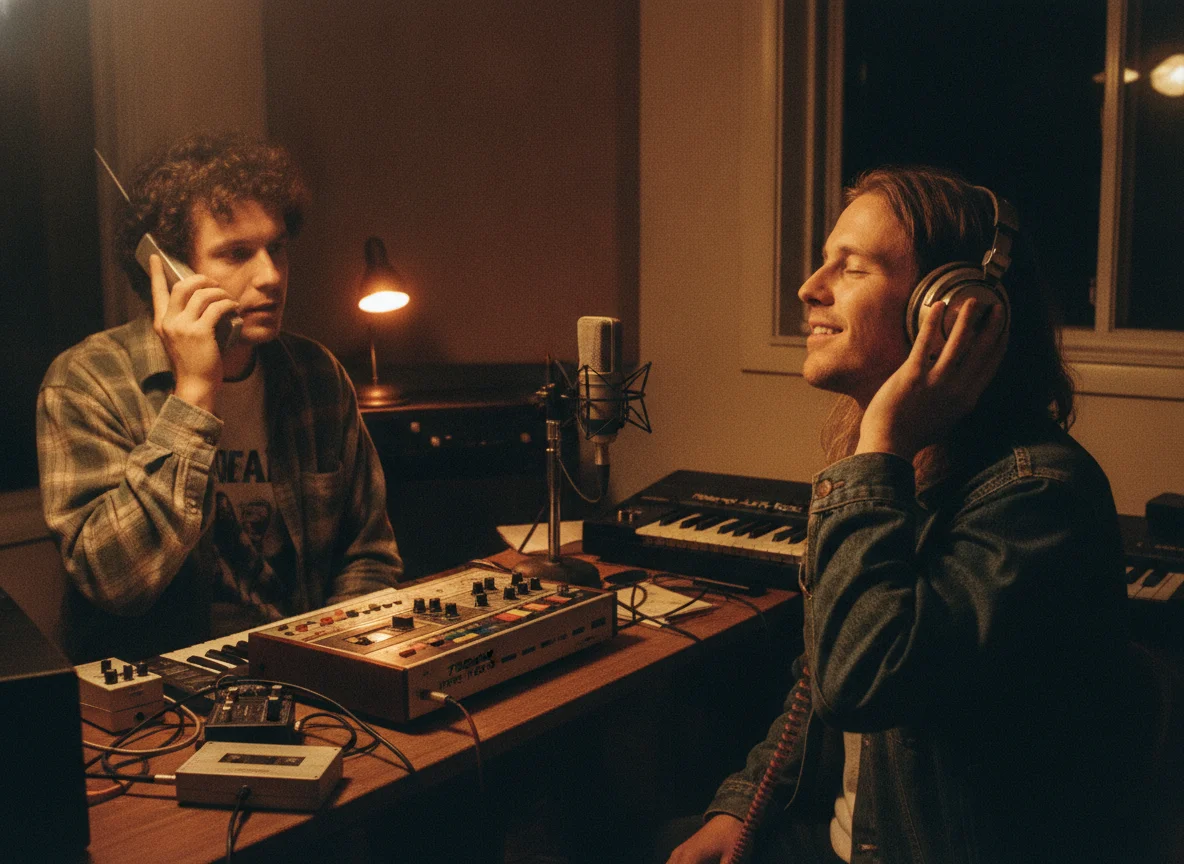
Create Cover Versions
Take an existing performance and re-voice it with a target sample you are allowed to use, then share the cover with your own audience.
Convert a Voice Now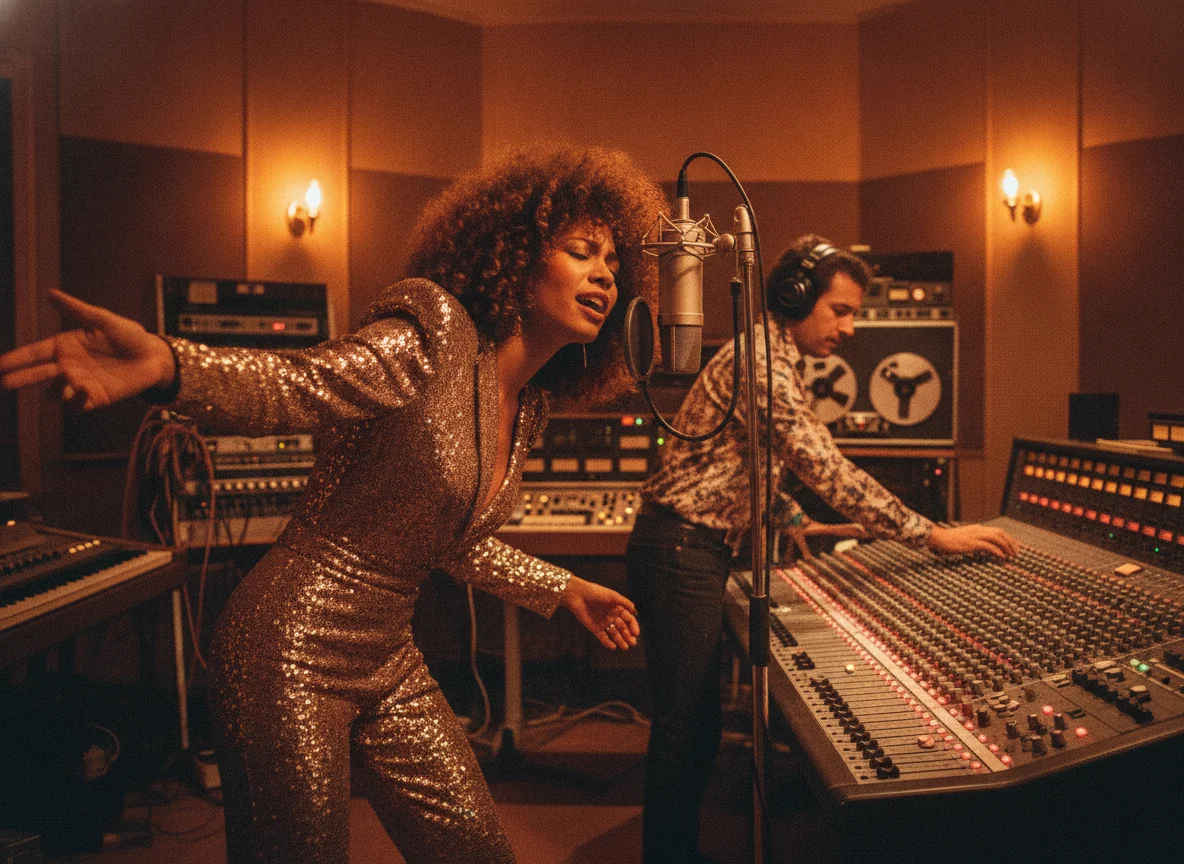
Produce Character Voices
Game and animation teams can turn one performer's lines into several distinct character voices without scheduling extra recording sessions.
Convert a Voice Now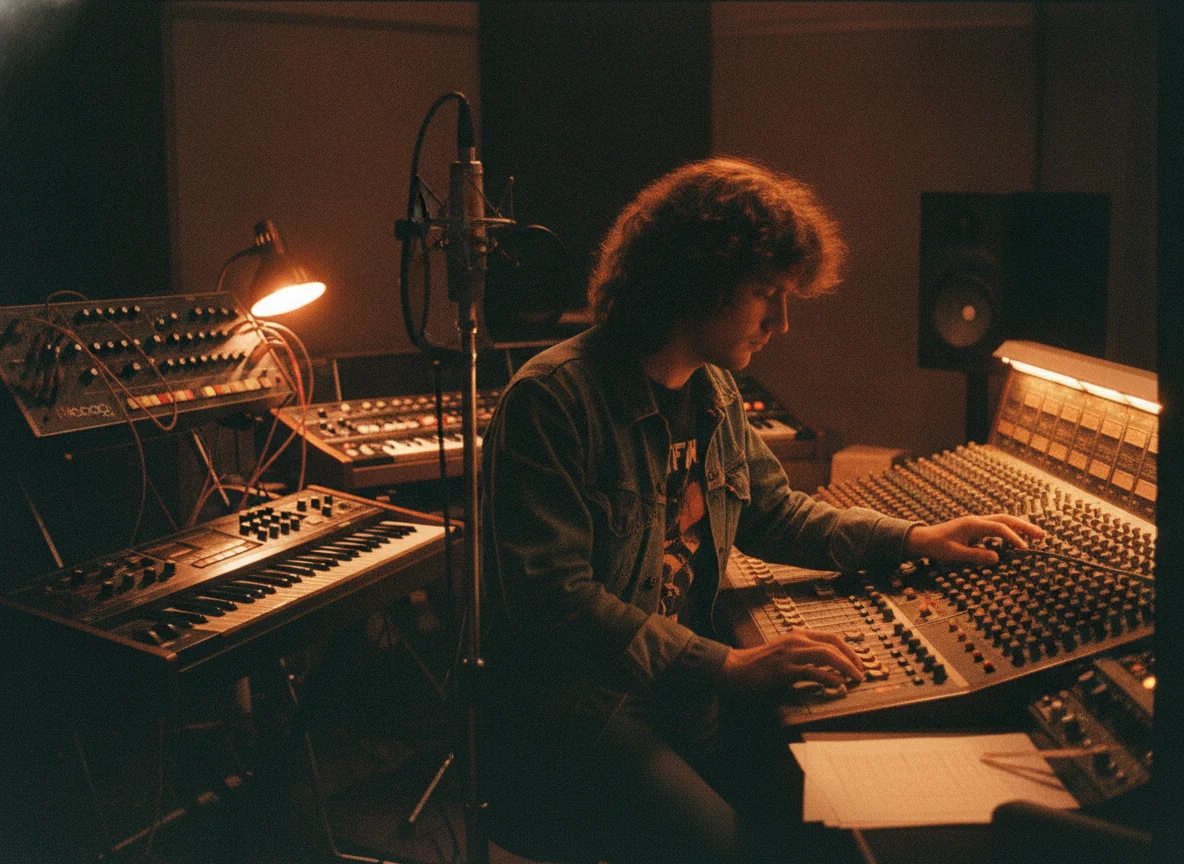
Polish Podcast Segments
Convert a guest clip or a narration read into a consistent voice for intros, trailers, or short promo segments in your show.
Convert a Voice Now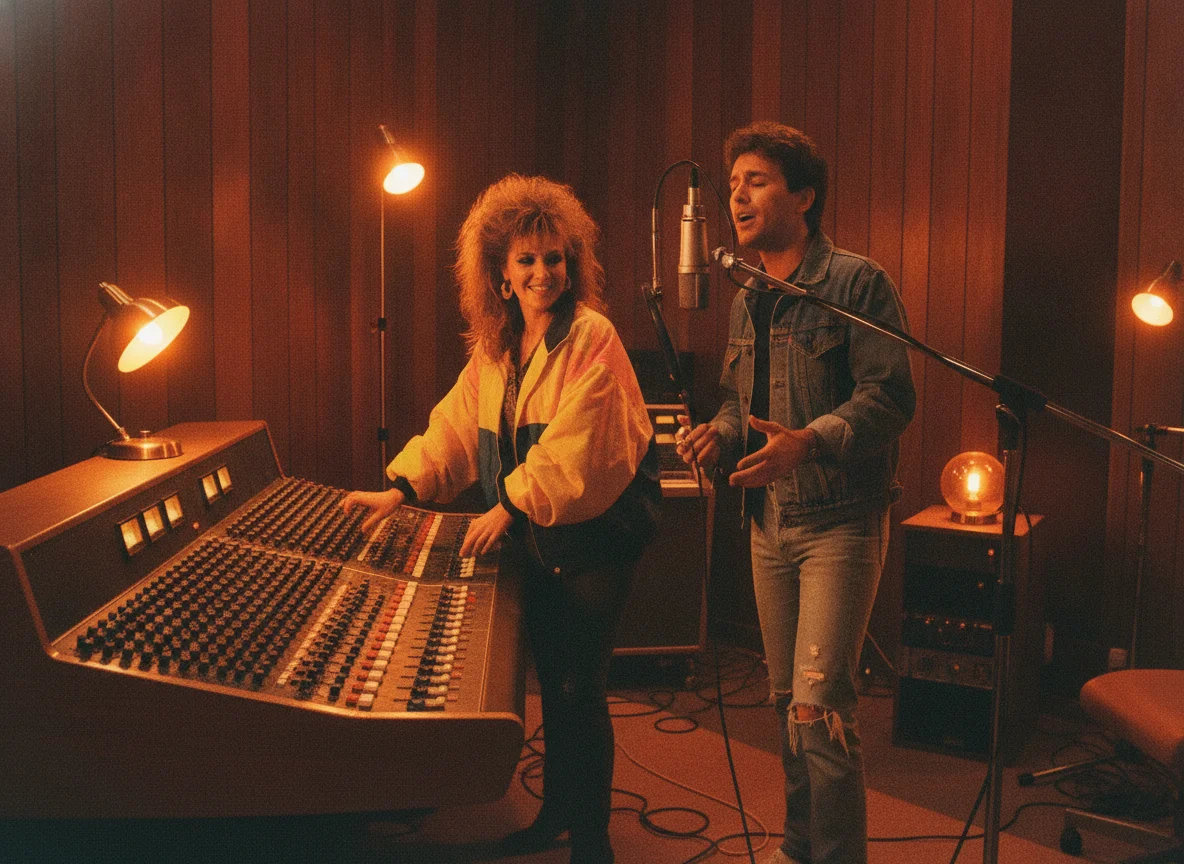
Finish Music Productions
Producers can audition several vocal colours over the same guide take, adjusting pitch until the voice sits right against the instrumental.
Convert a Voice Now
Make Social Clips
Turn short spoken or sung recordings into fresh-sounding voices for reels, shorts, and playful videos that stand out in the feed.
Convert a Voice Now
Why Use BeatMusic to Synthesize Voices?
A straightforward converter with controls that matter.
Clear Inputs, Predictable Results
You supply two things, the audio to convert and the voice to convert it into. That keeps the outcome easy to reason about and easy to repeat.
Fine Pitch Adjustment
A single slider covers lower and higher registers, so you can fit the converted voice to the key and range of your track.
Works With Your Library
Pick source or target audio from songs already in your account instead of re-uploading files every time you experiment.
Backing Track Choice
Decide per conversion whether the instrumental stays in the mix or the result is voice only.
No Setup or Software
Everything runs in the browser. There is nothing to install and no model files to configure before your first conversion.
Consent-First Workflow
The tool is built for voices and recordings you own or have permission to use, and this page spells out what that means before you start.
What Our Users Say
Hear from those who love BeatMusic.
Transformed My Workflow
"Using BeatMusic’s batch processing feature has revolutionized my production speed. Before, creating vocal tracks took forever. Now, I produce multiple tracks quickly, saving time and elevating my content quality. I highly recommend it to fellow creators."

Emily Johnson
Content Creator
Immersive Game Soundtracks
"BeatMusic’s voice customization allowed me to create unique character voices, enhancing player immersion. Before, I struggled with repetitive sounds, but now my games have a fresh audio experience. It's a must-have for developers."

Michael Brown
Game Developer
Transformed My Workflow
"Using BeatMusic’s batch processing feature has revolutionized my production speed. Before, creating vocal tracks took forever. Now, I produce multiple tracks quickly, saving time and elevating my content quality. I highly recommend it to fellow creators."
Emily Johnson
Content Creator
Immersive Game Soundtracks
"BeatMusic’s voice customization allowed me to create unique character voices, enhancing player immersion. Before, I struggled with repetitive sounds, but now my games have a fresh audio experience. It's a must-have for developers."
Michael Brown
Game Developer




Explore More AI Music Tools
Discover more BeatMusic tools for creating and editing audio.




How to Convert a Voice With BeatMusic
Four short steps from raw recording to a downloadable new voice.
Step 1: Upload the Audio to Convert
Choose the source recording, either a vocal take or a spoken clip, from your device or from your saved music. MP3 and WAV up to 50 MB are accepted.
Step 2: Choose the Target Voice
Add a clean reference clip of the voice you want to hear in the result. Use a voice you own or have clear permission to use.
Step 3: Set Pitch and Accompaniment
Adjust the pitch slider if the new voice sits higher or lower than the original, and decide whether to keep the backing music.
Step 4: Convert and Download
Start the conversion, wait for it to finish, then play it back from your history and download the MP3.
Frequently Asked Questions
Turn Your Recording Into a New Voice
Upload a source clip, add a target voice you have the rights to use, and convert it in your browser.
Try the Voice Synthesizer